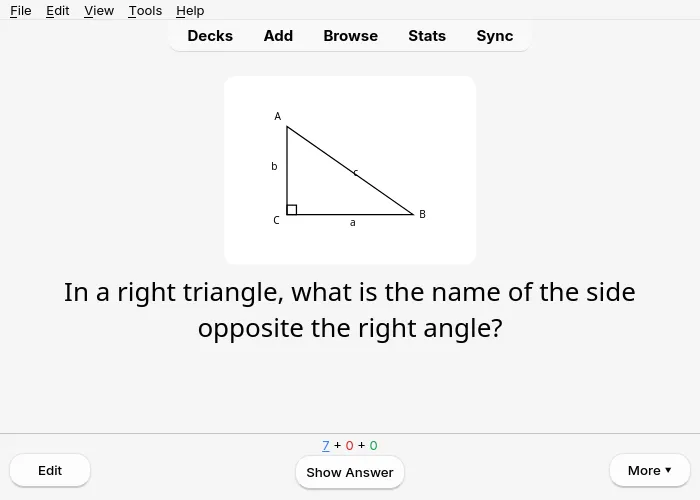
The cards in Anki
Whether they come from the app (into AnkiDroid) or from the computer (into Anki desktop), the cards are the same: the same decks, the same card types, the same updates. How to send them: see The app and AnkiDroid or Sending to Anki.
The decks
Section titled “The decks”Each lesson has its deck, for instance Spanish::Unit 3 - At school: :: makes a deck inside
another one, so the lessons of a subject are grouped together. Cards with a section (Vocabulary,
Quiz…) go into a sub-deck of the lesson’s deck.
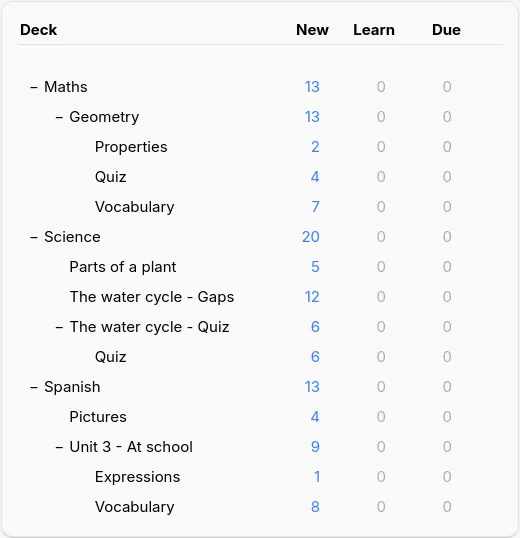
To review a whole subject, click its deck: Anki takes the cards of all the decks inside it.
Sending a lesson again
Section titled “Sending a lesson again”Once the lesson is sent, the button says ✓ Up to date in Anki, then 🔄 Update in Anki as soon as something changes. You can correct a lesson and send it again as many times as you like:
- its cards are updated in Anki, not duplicated, and each card keeps its review history, even when you corrected its front;
- if you changed the lesson’s deck, its cards are moved there, with their history;
- cards added since the last send are added;
- cards deleted from the lesson stay in Anki: after the send, Notosaurus lists them and offers to delete them (with their review history), never without asking.
Deleting a whole lesson in Notosaurus offers to delete its cards in Anki too, with their review history.
On the computer, changing a card option (the reverse card, the typed answer) on a lesson already sent moves its cards to the matching note type, history kept.
In Anki, each lesson’s notes carry a tag notosaurus::<lesson>: handy to find them in the
browser.
Correcting a card from Anki
Section titled “Correcting a card from Anki”Under every answer, a small ✎ Notosaurus opens the card in Notosaurus to correct it: in the app on Android (AnkiDroid opens a short web page first, whose button opens the app), in the page on the computer (Anki open, Notosaurus on its usual port). Nothing is lost: the correction updates the same note, its review history stays. The link only knows where the lesson lives: a lesson made on the computer opens there, one made in the app opens in the app. AnkiWeb and AnkiMobile don’t show it.
Up to AnkiDroid 2.25.2, first turn on Settings → Advanced → Allow cards to launch other apps: without it, AnkiDroid blocks every link on a card (“Card blocked from launching another app”). From AnkiDroid 2.25.3, links to a web page go through without it.
What they look like
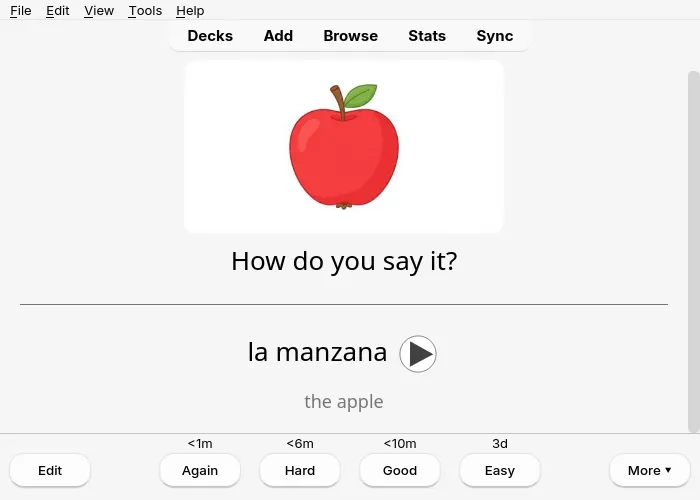
Section titled “What they look like”Here is what the card types look like during a review in Anki desktop. AnkiDroid and AnkiMobile show the same cards.
Question and answer: a word with its audio (▶) and a note.
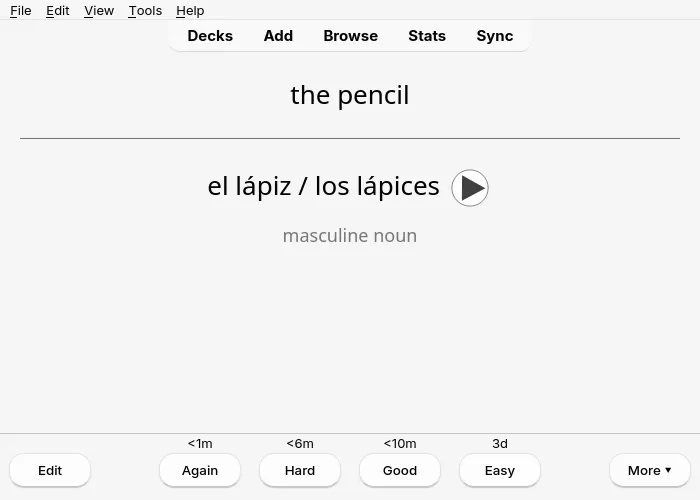
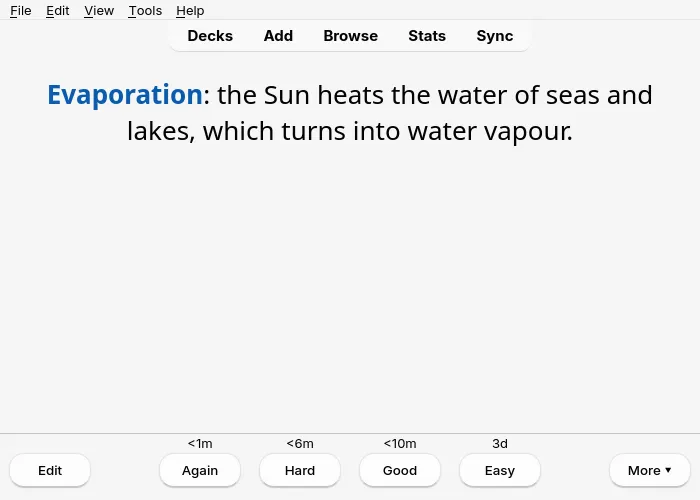
Fill in the blanks: the question hides the word, the answer shows it.
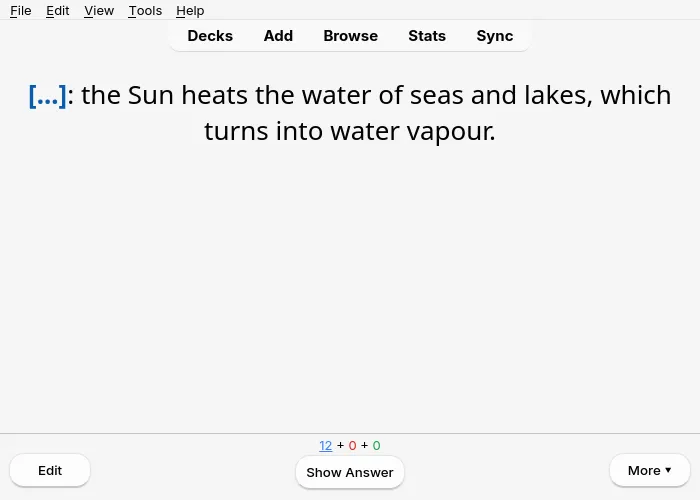
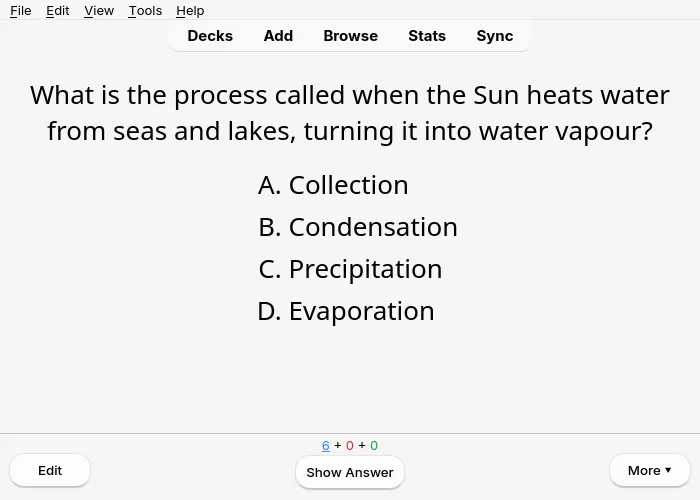
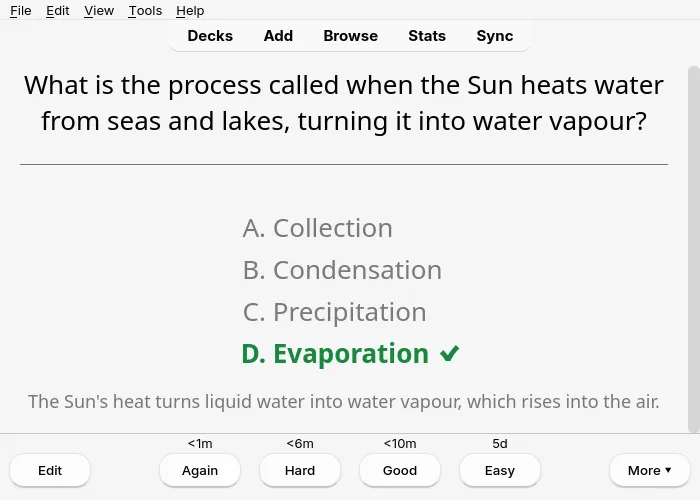
Multiple choice: the answer marks the right choice with ✔ and gives the explanation.
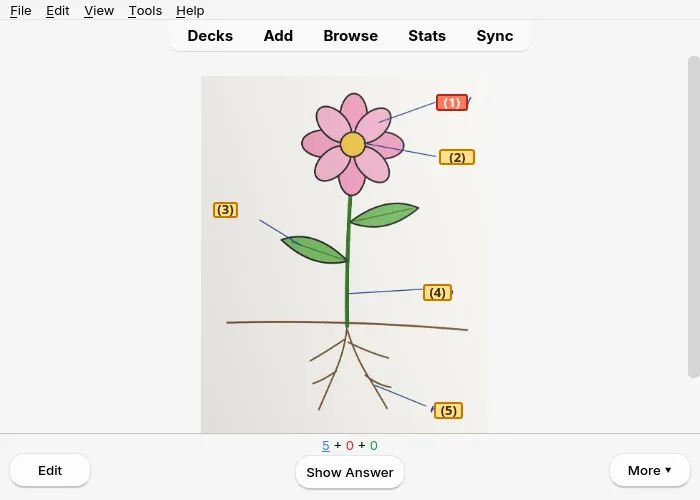
Diagrams: the photo of the lesson with numbered labels; one card per label to name.
Pictures: a drawing to name in the language being learned, with its audio.
Figures: the figure drawn by Notosaurus comes with the question.