
On the phone
With the Anki add-on on the computer, the phone opens Notosaurus in its browser: a web page, on the same Wi-Fi. Added to the home screen, it then opens with one tap, like an app.
1. Open Notosaurus
Section titled “1. Open Notosaurus”In Anki on the computer, Tools → Notosaurus → Open on the phone… shows a QR code. With the phone on the same Wi-Fi as the computer, scan it with the phone’s camera and open the link.
Scanning the QR code also allows that phone to use Notosaurus: other devices on the Wi-Fi can’t (see Privacy and security on the computer).
2. Add it to the home screen
Section titled “2. Add it to the home screen”Do it right after scanning the QR code, from the page that opened: the icon keeps the phone’s authorisation.
Android
Section titled “Android”In Chrome:
-
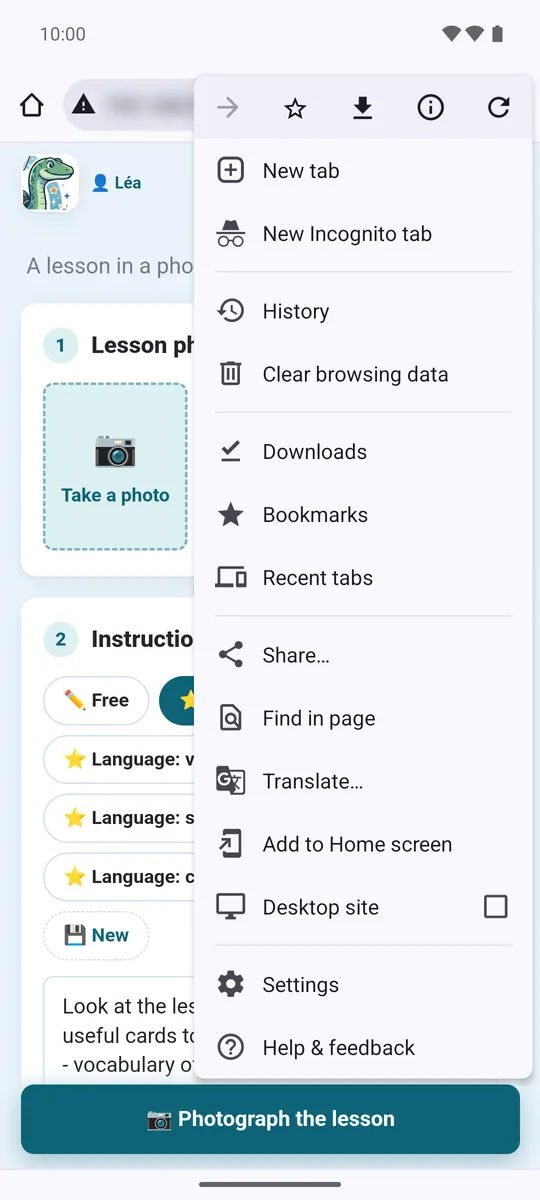
The ⋮ menu, top right → Add to Home screen.
-
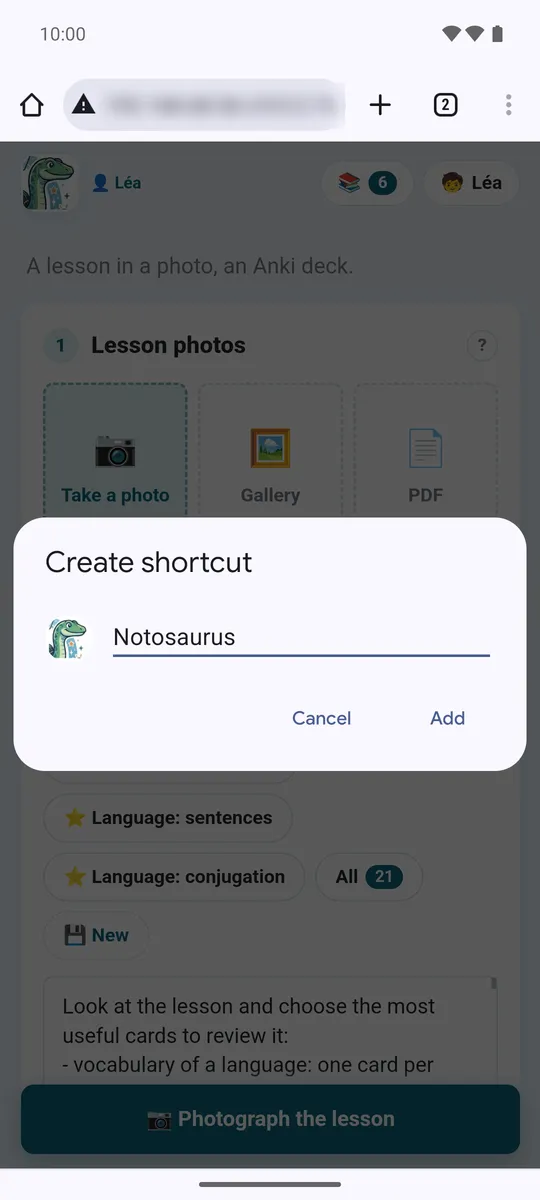
Create shortcut: keep the name Notosaurus, then Add.
-
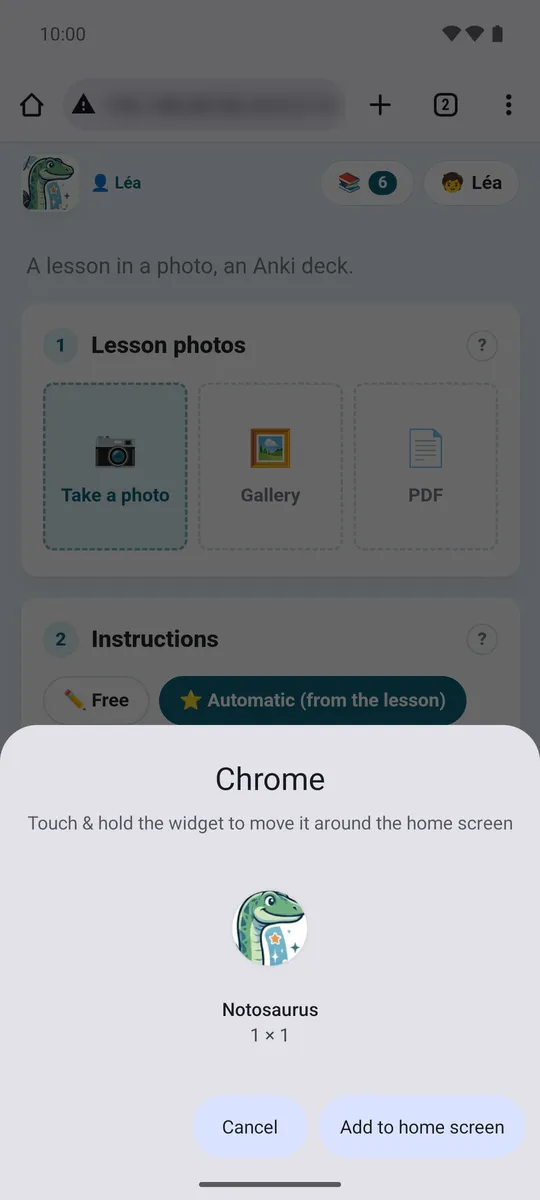
Add to home screen (or touch and hold the icon to place it yourself).
-
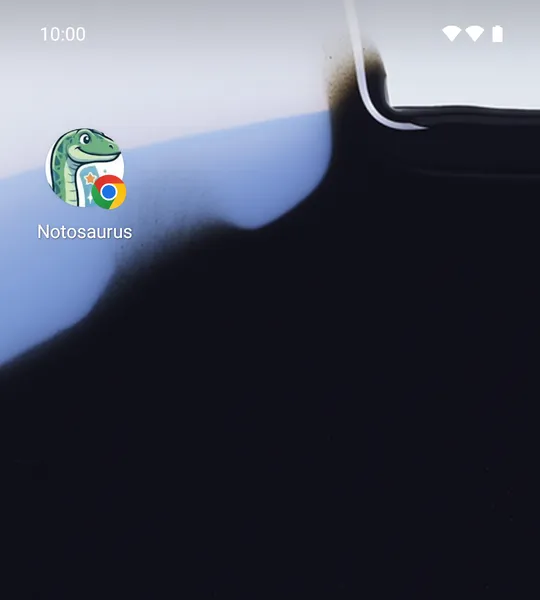
The Notosaurus icon is on the home screen, sometimes on the next page.
In other browsers:
- Samsung Internet: the ≡ menu → Add page to → Home screen.
- Firefox: the ⋮ menu → Add to Home screen (or Install).
iPhone and iPad
Section titled “iPhone and iPad”In Safari: the Share button (the square with an arrow) → Add to Home Screen → Add. On an iPhone, the icon doesn’t share Safari’s memory: adding it right after scanning the QR code is what lets it in.
Good to know
Section titled “Good to know”- The phone must be on the same Wi-Fi as the computer, and Anki must be open on the computer (with the add-on): Notosaurus works at home, not away from it.
- If every phone was disconnected (Settings → Phones) or the computer’s address changed (after restarting the router), the icon no longer opens Notosaurus: scan the QR code again, then add the page to the home screen again (and remove the old icon).