Getting started with the add-on
The Anki add-on runs Notosaurus on your computer, inside Anki desktop, free, with your own AI key. You use it from the phone’s browser, or from the Android app, on the same Wi-Fi. Rather the app on its own? See Which Notosaurus?.
What you need
Section titled “What you need”- Anki on a computer (Windows, macOS or Linux), a recent version.
- A phone on the same Wi-Fi as the computer.
- A key for an AI service. Gemini is the cheapest and has a free tier to try Notosaurus; Claude and GPT work well too. A lesson costs from a fraction of a cent to a few cents.
1. Install the add-on
Section titled “1. Install the add-on”- Download
notosaurus-<version>.ankiaddonfrom the latest release. - Double-click the file (or in Anki: Tools → Add-ons → Install from file), then restart Anki.
- On first start, Notosaurus asks before installing its components (about 300 MB). It takes a few minutes, once.
2. The setup assistant
Section titled “2. The setup assistant”Once the components are installed, Anki offers “Set it up now?”: the assistant opens in the computer’s browser. Two steps, a few minutes. It is always in Tools → Notosaurus → Getting started, and as long as no AI is set up, the Notosaurus page shows “One step left” with a button to start it.
The AI. Choose the service that reads the lessons. Gemini is recommended: the best value in our tests, about 1 US cent per lesson (see Settings and AI services for the others).
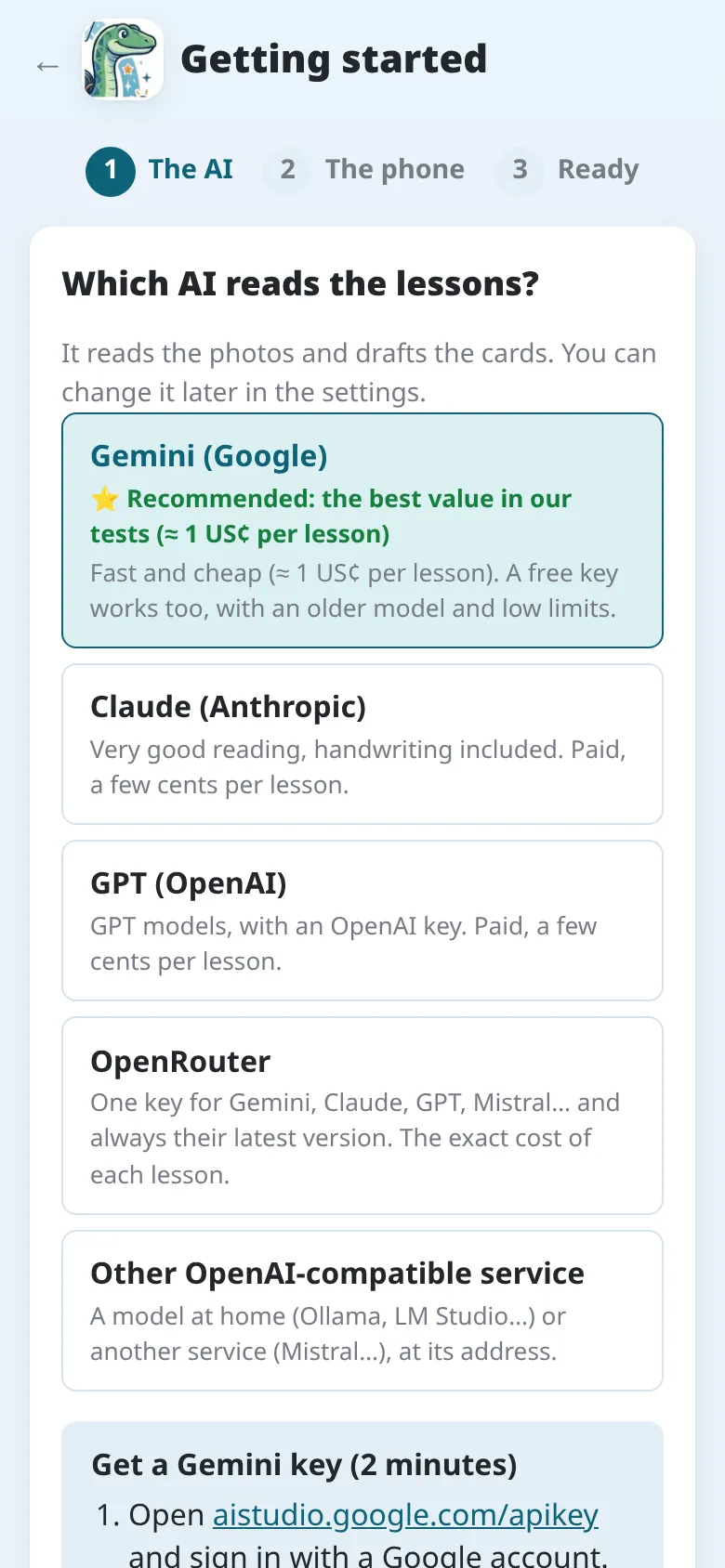
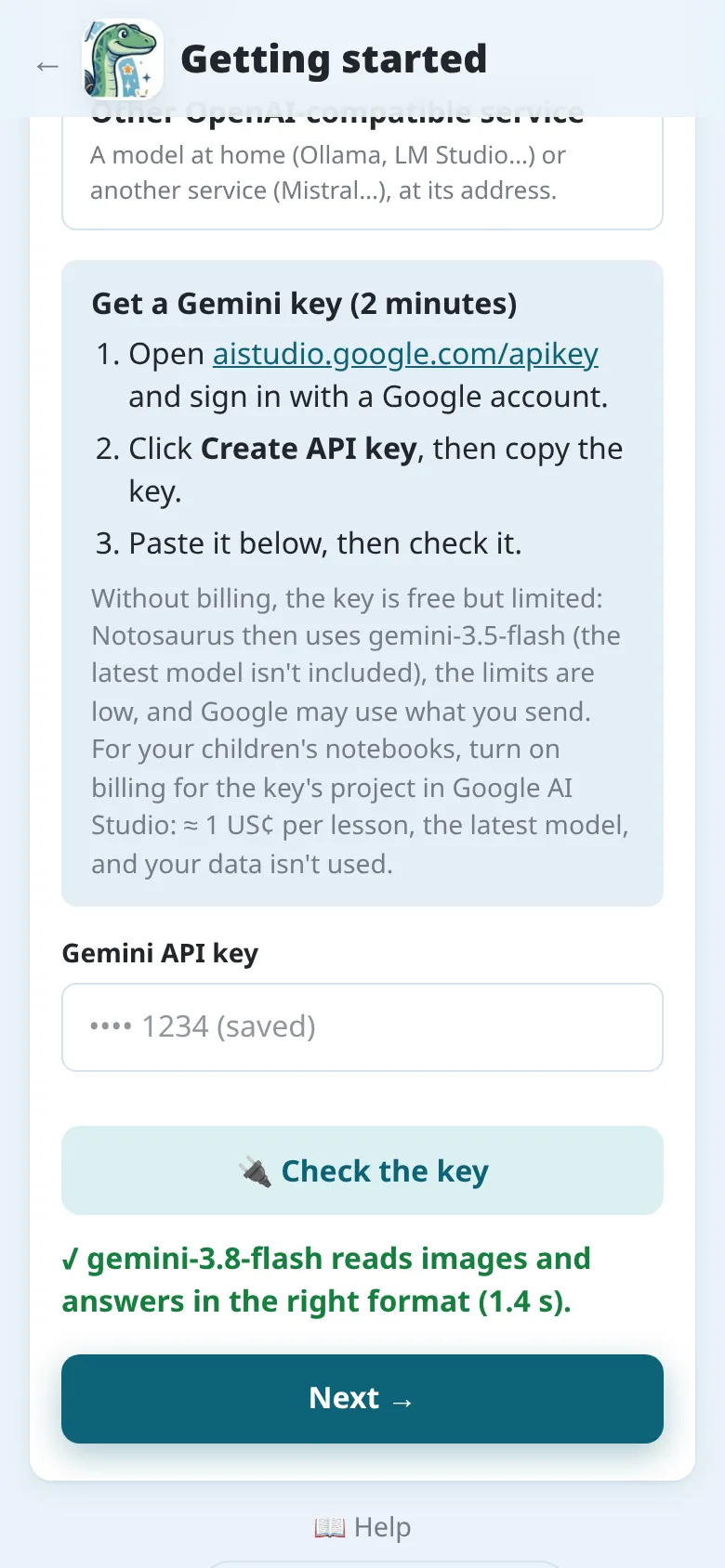
For Gemini, the assistant explains how to get the key in three steps. Paste it, then tap 🔌 Check the key: Notosaurus checks that the model reads an image and answers in the right format. Next shows up once it passes.
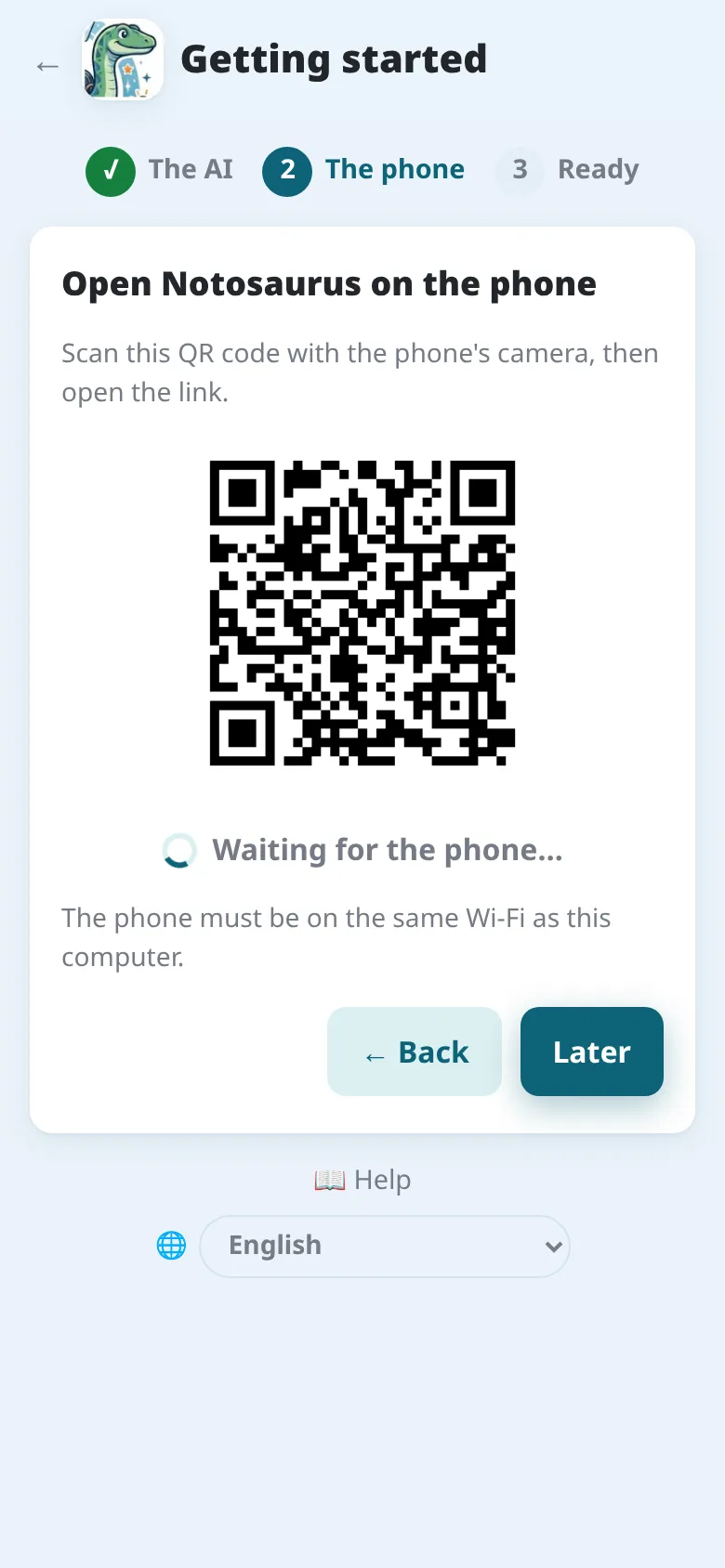
The phone. Scan the QR code with the phone’s camera and open the link. The assistant waits for the phone, then shows “✓ The phone is connected”. Then add the page to the home screen: it opens like an app (see On the phone for each browser). Later skips this step: the QR code stays in Tools → Notosaurus → Open on the phone… and in the settings.
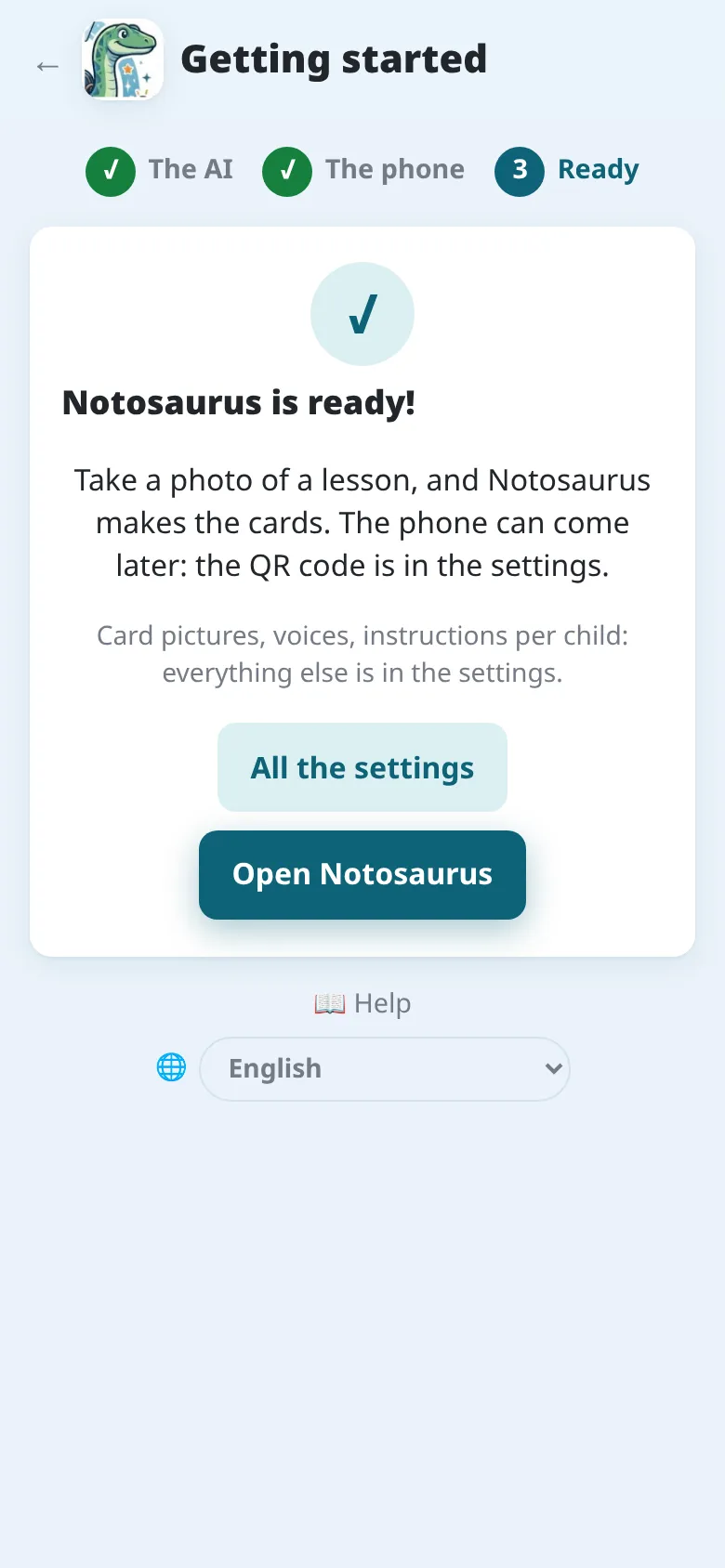
Ready! Open Notosaurus, or all the settings: card pictures, voices, instructions per child… Settings only open on the computer: children can’t change them from a phone.
3. Your first lesson
Section titled “3. Your first lesson”-
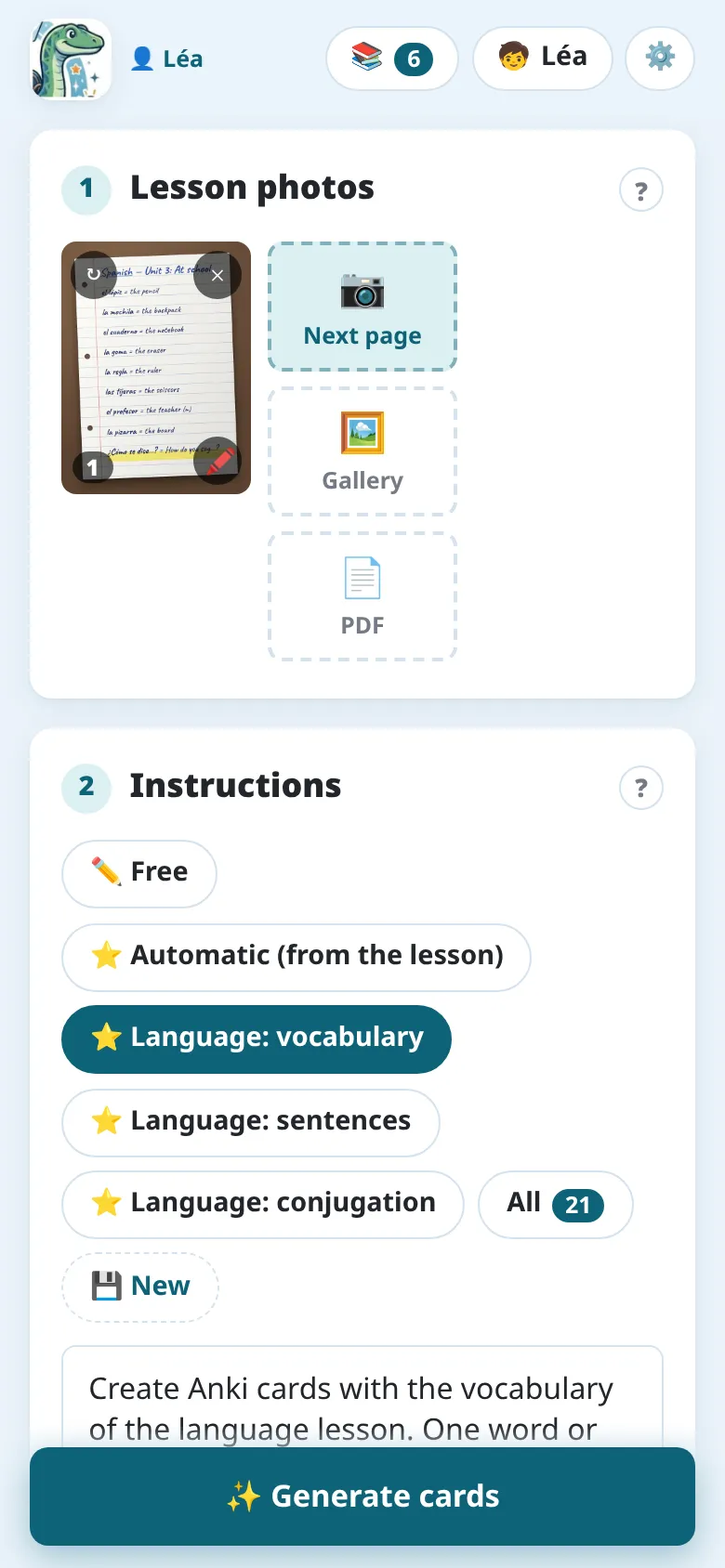
Under Lesson photos, take a photo of the page (or several pages), or add a PDF: see Photos and PDFs.
-
Under Instructions, pick what to make: vocabulary, questions, fill in the blanks, a diagram to complete… Automatic chooses from the lesson. See Instructions.
-
Tap Generate cards and wait a few seconds.
-
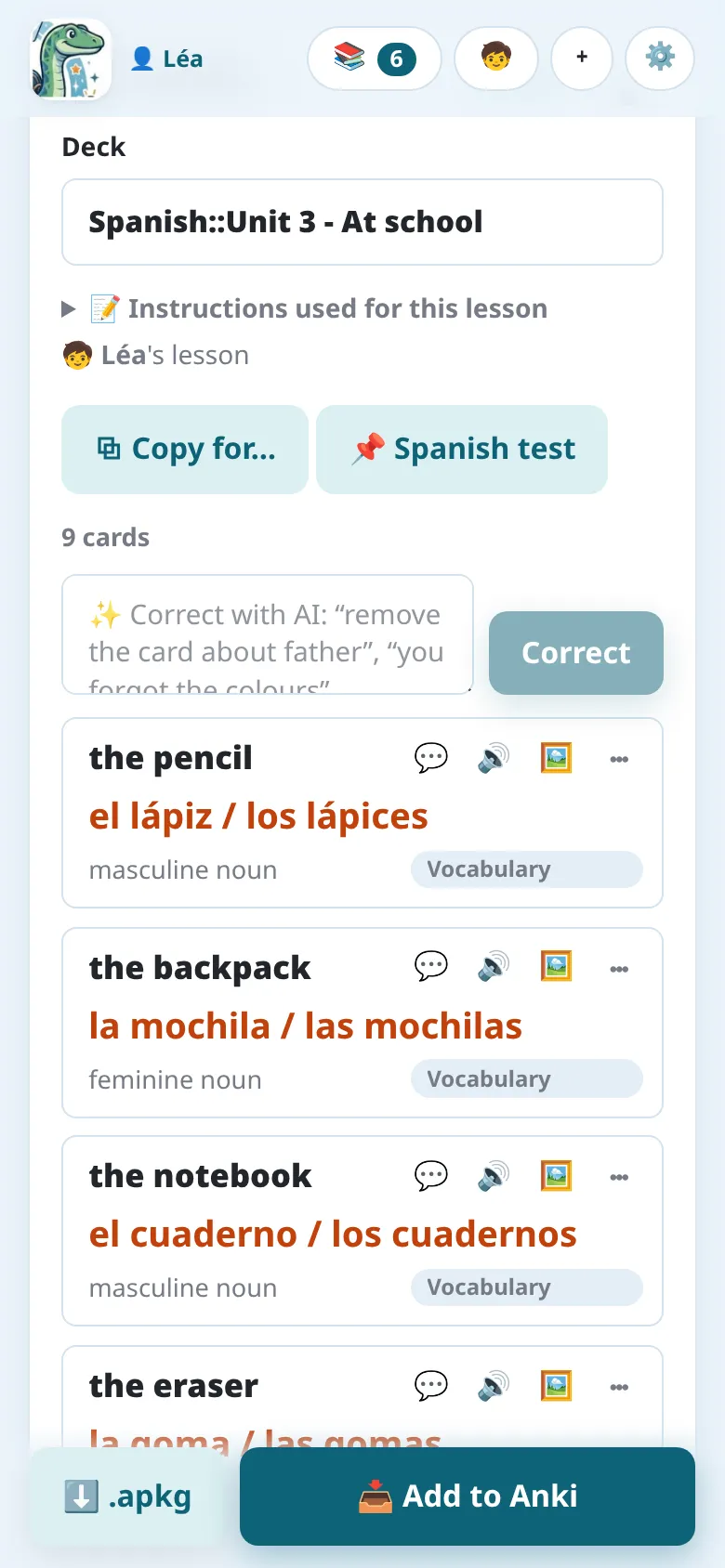
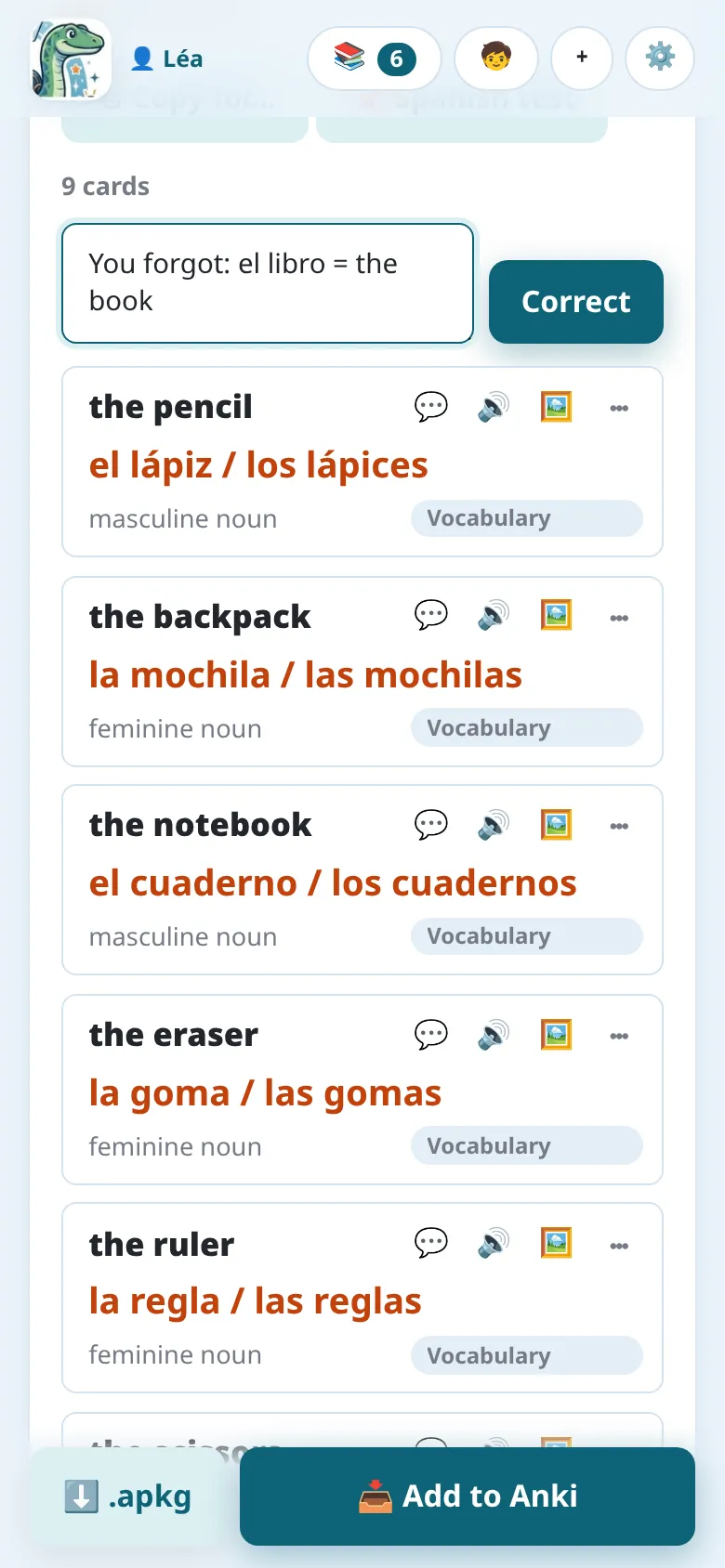
Check the cards. Edit them, delete some, or ask the AI to fix them in plain words: see Reviewing the cards.
-
Tap Add to Anki.
The lesson is saved: you can reopen it later from the list of lessons, correct it and send it again. Its cards are updated in Anki, not duplicated.
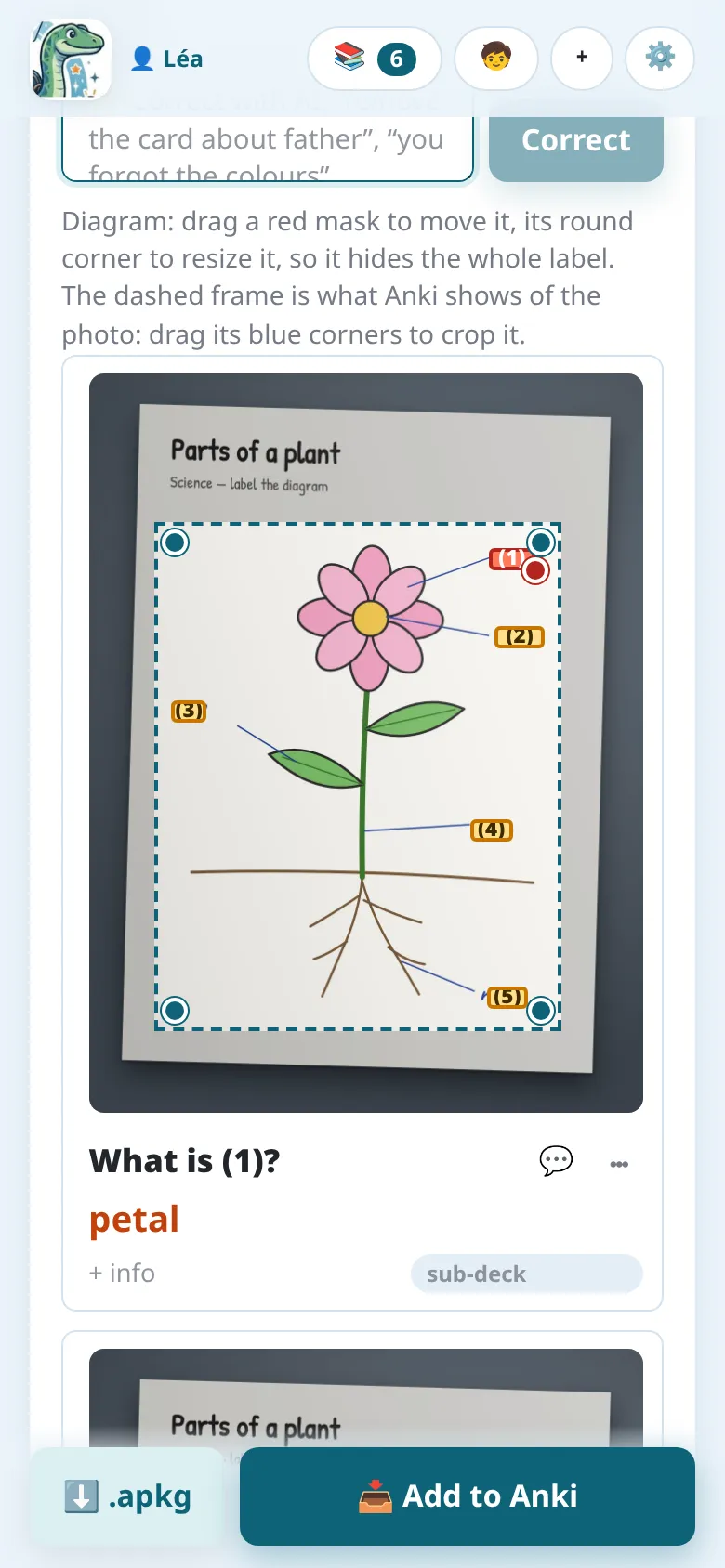
With the Diagram or map to complete instructions, the labels of a diagram are hidden behind numbers: each card asks for one of them.
4. Review on the phone
Section titled “4. Review on the phone”To review on the phone, use AnkiDroid (Android) or AnkiMobile (iPhone) with an AnkiWeb account: Notosaurus syncs Anki after sending the cards. With several children, see Several children.