Photos and PDFs
The AI reads what it sees: a clear photo gives better cards, and fewer corrections.
- Good light, no shadow. Daylight near a window is best. Avoid the shadow of the phone and of your hand on the page.
- The page flat, filling the photo. Hold the phone above the page, parallel to it. A slight angle is fine; a strong one blurs the far side.
- One page per photo. For a double page, take two photos.
- Sharp. Tap the screen to focus before taking the photo, and keep still.
- Only the lesson. Leave out other pages, drawings in the margin and corrections that aren’t part of what must be learnt, or tell the AI what to ignore in the instructions.
Handwriting is read well when it is legible to an adult. On the computer, where you choose the AI, Claude reads it best; Gemini is a good and cheaper choice.
Several pages
Section titled “Several pages”A lesson can have up to 10 pages. After the first photo, Next page adds another one; Gallery picks photos already taken (JPEG, PNG, WebP or GIF). On a computer, you can also drag photos or PDFs from a folder and drop them on Gallery or PDF.
On each photo:
- Turn (↻): a quarter turn;
- Remove (×): the photo leaves the lesson;
- Hide (🖍️): hides part of the page before it is sent (see below);
- a tap shows it full screen: swipe between pages, tap again to see it at its real size; Turn and Hide work from there too.
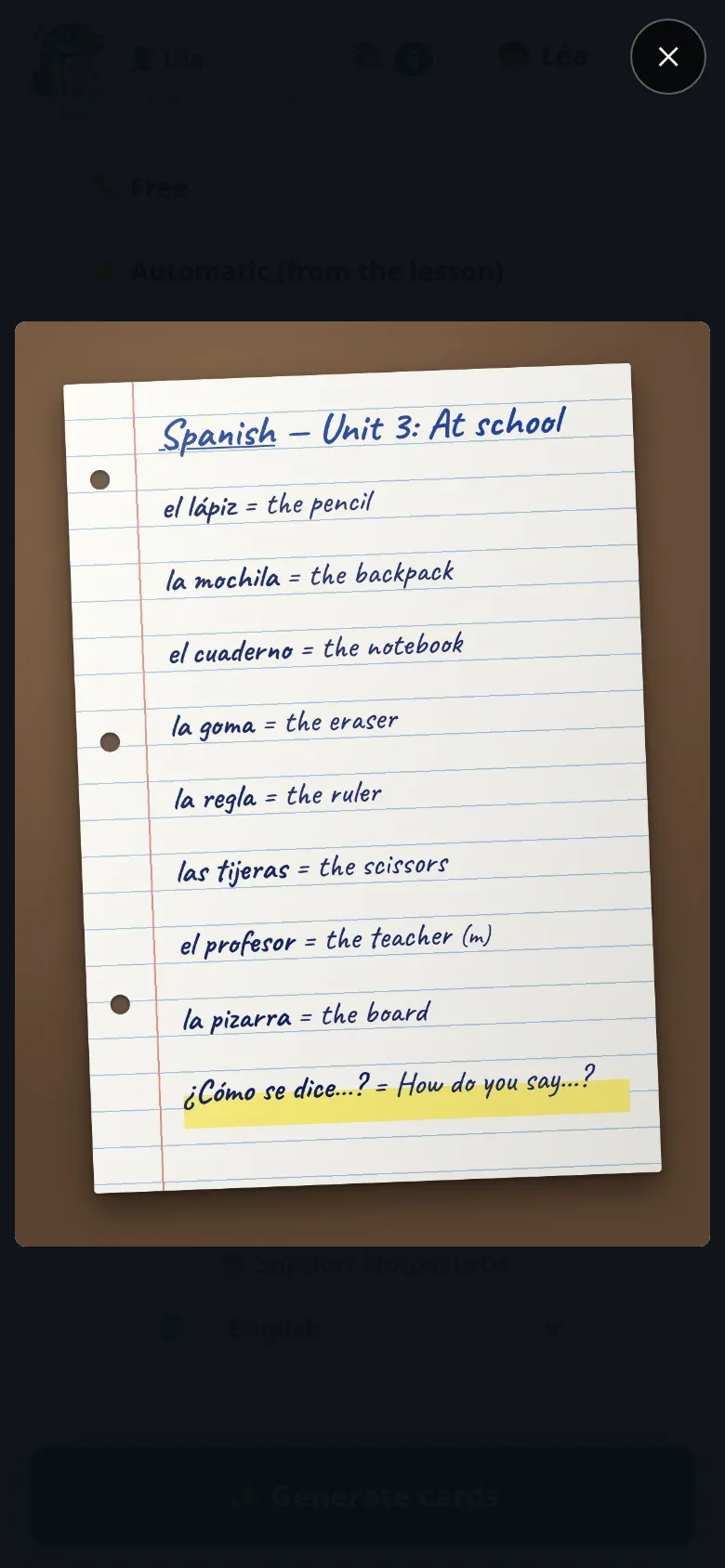
A page photographed sideways (the phone flat over the table) is read all the same, and kept as taken: Turn (↻) puts it upright, its hidden parts and the diagram’s frame with it.
Adding a page later
Section titled “Adding a page later”The rest of the lesson comes a few days later? Reopen the lesson from the Lessons button (📚), add the new page’s photo with Next page, then tap ➕ Add the new page’s cards. The AI reads only the new pages, knowing which cards exist already: it doesn’t make them again. The new cards come after the others, marked “new” for you to check; the others don’t move, and 🔄 Update in Anki adds only the new ones (the others keep their review history). ✨ Generate again, next to it, remakes the whole lesson.
📄 PDF, next to the camera and the gallery, adds the pages of a PDF: a worksheet sent by the teacher, a page of a digital textbook, a booklet… Each page becomes a photo of the lesson, so everything works as with photos: diagrams, corrections, every AI service.
- A PDF made on a computer (not a scan) also holds its exact text: Notosaurus sends it to the AI with its page, so no word, accent, date or number is misread.
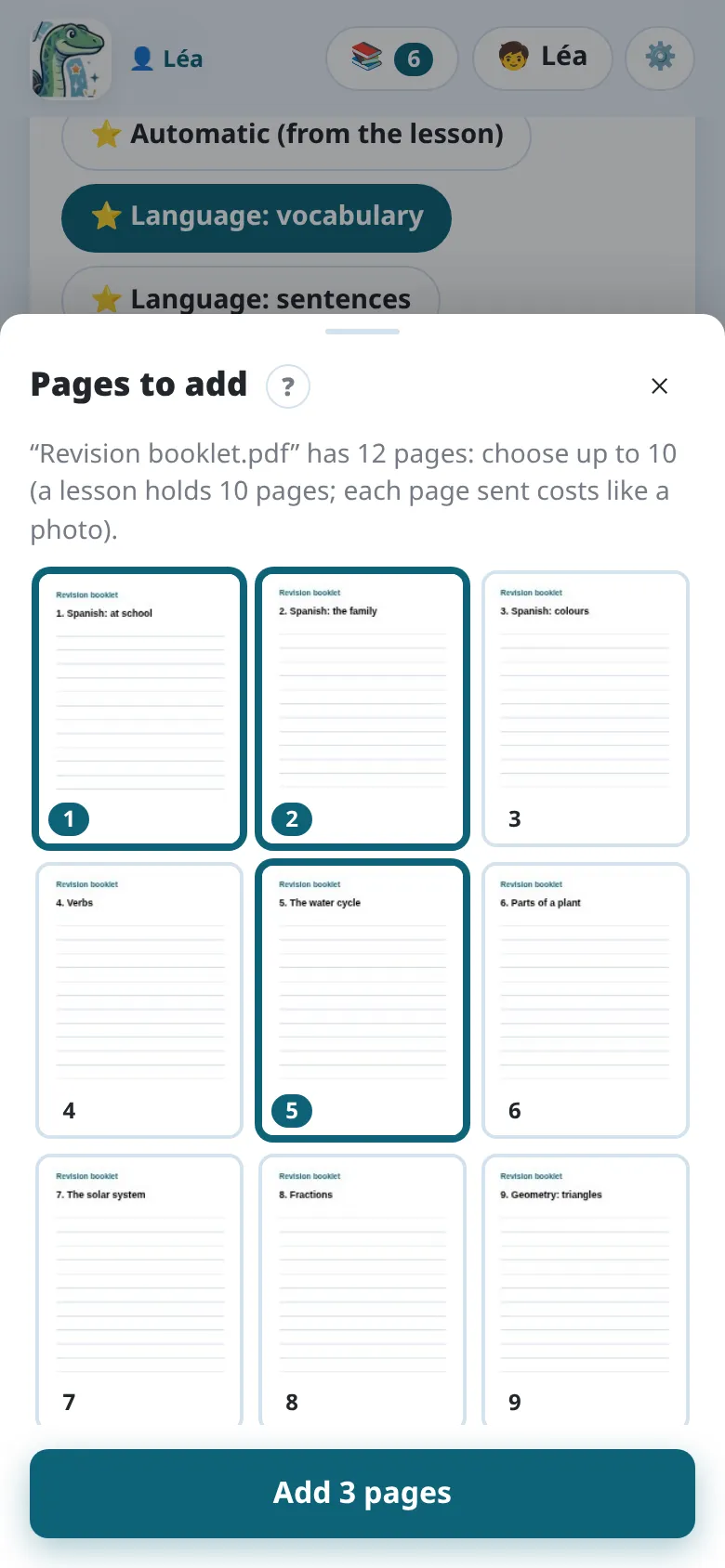
- More pages than the lesson has room for (10 pages in all): Notosaurus shows them all, and you tap the ones to add.
- Each page sent costs like a photo: choose only the pages of the lesson.
- A password-protected PDF must first be saved without its password.
Hiding a name or a school
Section titled “Hiding a name or a school”A notebook page often shows the child’s name, class, school. The Hide button (🖍️), on a photo not sent yet, opens it in full: with your finger, Black out covers what the AI shouldn’t see, Un-black brings it back. Done keeps the blacked-out photo: it alone is sent and saved. Until the photo is sent, you can come back to it and change what is hidden.
On a PDF page with a hidden part, its text isn’t sent (it holds what is hidden too): the AI reads the page as a picture.
What happens to the photos
Section titled “What happens to the photos”- The photos go through the Notosaurus service to Google’s Gemini, to read them, processed in the European Union and not kept there. See the app’s privacy policy.
- They are saved with the lesson on the phone, in the app’s private storage.
- The photos are sent to the AI service chosen in the settings, to read them, and to nobody else. See Privacy and security on the computer.
- They are saved with the lesson on your computer.
- Saved with the lesson, they let you reopen it, correct it or generate it again later. Deleting the lesson deletes them.
- Diagram cards keep a cropped copy of the diagram, with its labels hidden: that’s what Anki shows.
No photo?
Section titled “No photo?”Without a photo, the big button at the bottom becomes Generate from the prompt alone as soon as the prompt says what to learn; a Notosaurus prompt needs a few words of your own added. Then put the words in it (“the 20 irregular verbs: be, have, go…”), or ask for a topic (“the planets of the solar system”). Check those cards carefully: they don’t come from your lesson.