
Reviewing the cards
Even the best AI misreads a word now and then: always look through the cards before sending them. Everything you change is saved as you go (“✓ Saved”).
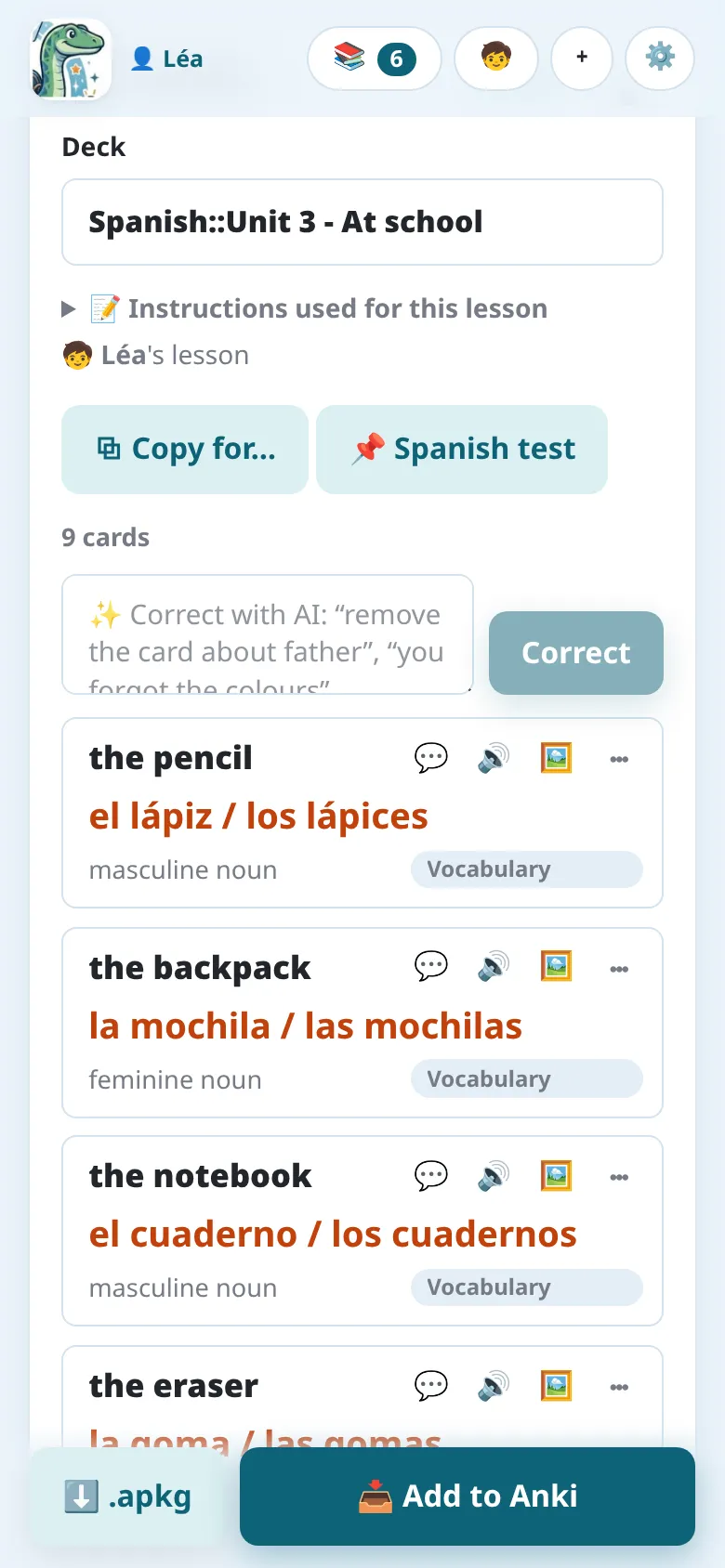
The deck and the cards
Section titled “The deck and the cards”- Deck: the name of the Anki deck.
::makes sub-decks:Spanish::Unit 3 - At school. - Each card has a front (the question) and a back (the answer). Tap a text to change it.
- + info adds a note shown under the answer: gender, plural, an example…
- sub-deck puts the card in a sub-deck of the lesson (“Vocabulary”, “Verbs”).
- Listen to the back (🔊) plays it with the lesson’s voice.
- More actions (⋯), at the card’s top right, deletes it; + Add a card, at the bottom, adds one.
📝 Instructions used for this lesson, above the cards, reminds what the AI was asked.
A lesson that looks wrong
Section titled “A lesson that looks wrong”When the lesson itself seems to contain a mistake (a pupil’s notes, a copy error: a wrong date, name, number or formula), the card keeps what the lesson says, with a note (⚠️) saying why it looks wrong and the suggested correction. Correct takes it; Keep the lesson dismisses the note. Only clear, verifiable mistakes are flagged, never a convention or a simplification, and the note never goes to Anki.
Reporting a problem
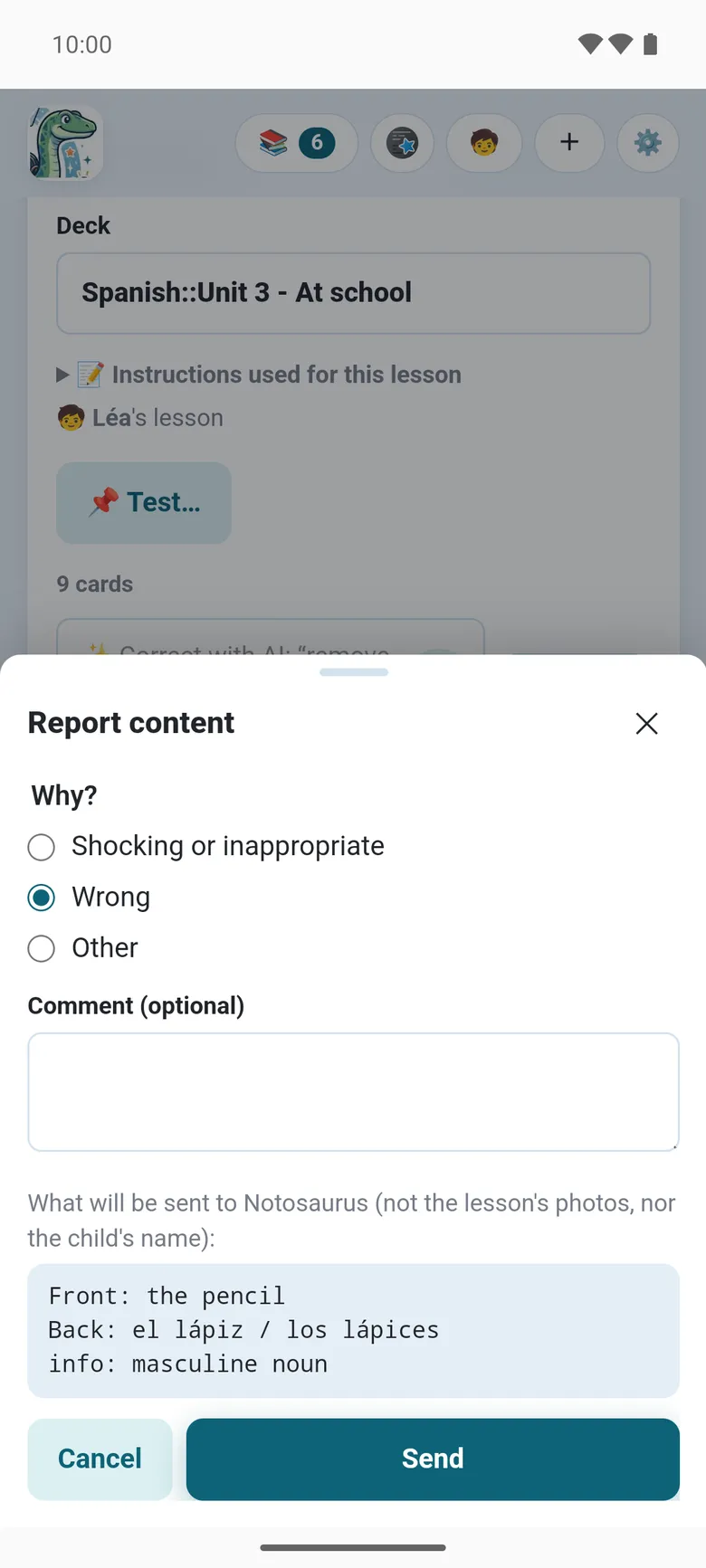
Section titled “Reporting a problem”In the Android app, ⋯ → ⚑ Report, at the top right of a card, tells Notosaurus what went wrong: a word misread, a wrong answer, a figure with a mark in the wrong place, an unsuitable picture, a card that makes no sense. Don’t hesitate: every report is read, and it’s how such mistakes get fixed in Notosaurus, for every lesson to come.
- Say why (Wrong, Shocking or inappropriate, Other) and, if you like, add a comment: what you expected helps most.
- What is sent is the whole card as you see it (its texts, its explanation when shown, its picture or figure, unless it’s a photo you took yourself); the sheet shows exactly what, never the lesson’s photos nor the child’s name. See Privacy.
- Then you can delete the card or remove its picture.
Correcting with the AI
Section titled “Correcting with the AI”Instead of changing the cards one by one, ask in plain words, in the field above the cards:
- “remove the card about the father”
- “you forgot the colours at the bottom of the page”
- “add the plural on the back, like: la regla / las reglas”
- “shorter questions”
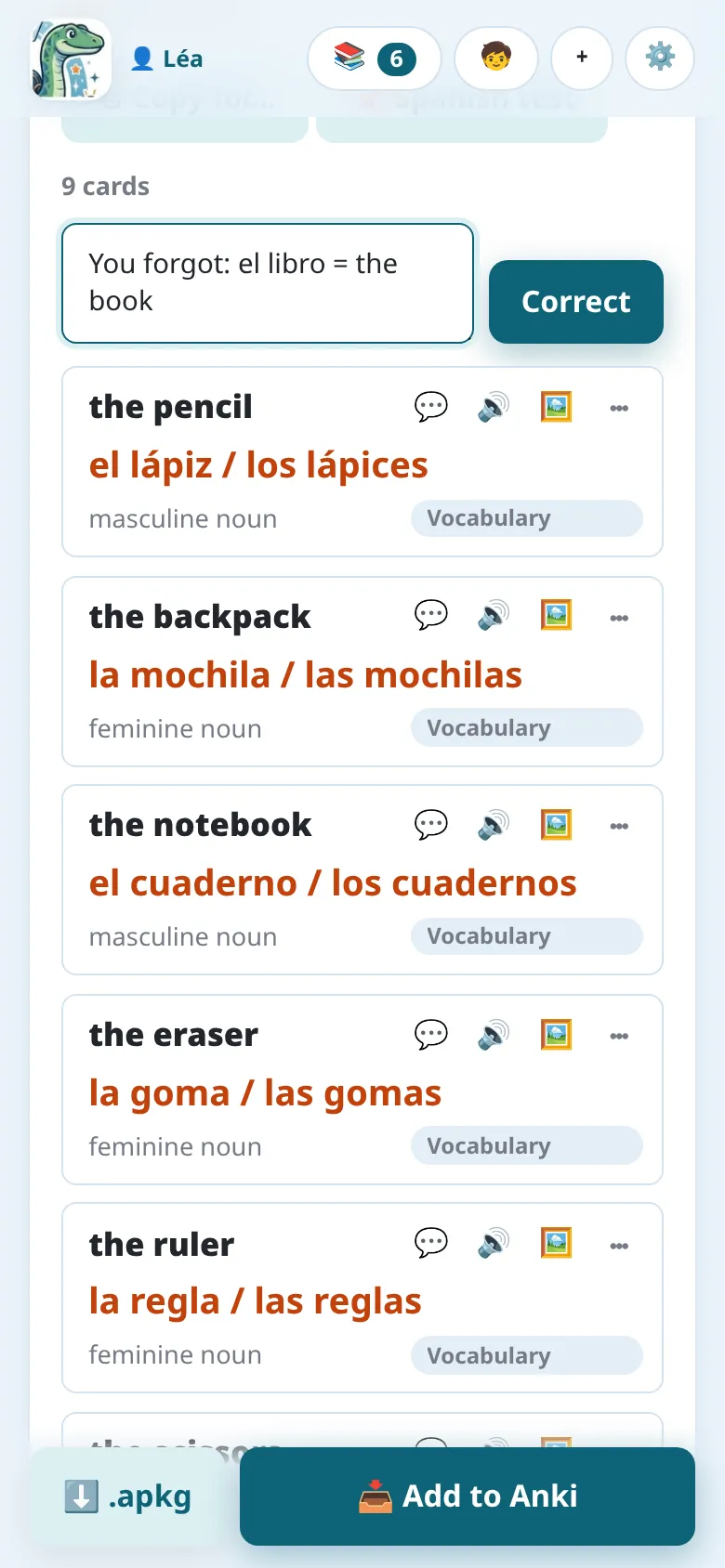
Tap Correct. The AI sees the photos again and changes only what you asked: changed cards are marked changed, new ones new, and a sentence sums up what it did. ↩ Undo brings the cards back as they were.
Explaining a card
Section titled “Explaining a card”Explain this card (💬) asks the AI to explain it: what it means, and why its answer is the answer, in two to four sentences, at a pupil’s level, in the page’s language. Handy for a subject you’ve forgotten, or a card the pupil doesn’t understand.
Under the explanation, the AI offers only what would help with that card:
- An example: a sentence using the word, a worked calculation with the formula;
- A way to remember it: when a natural one exists;
- Why is it right?: when it isn’t obvious, and for a multiple choice or a true/false card (why the other options are wrong too).
Keep in “Info” adds what was explained to the card’s info: you’ll find it on the back in Anki. Each explanation is a short AI call: credits in the app; on the computer, a fraction of a cent with Gemini Flash, about a cent with Claude Sonnet, counted with the lesson’s costs.
Generating again
Section titled “Generating again”✨ Generate again, under the instructions, makes the cards of the open lesson again, for instance with other instructions or after adding a page. It replaces the cards; ↩ Undo brings them back, unless the photos changed. If the lesson was already sent to Anki, the cards sent stay there, and the new ones are added at the next send.
Card options
Section titled “Card options”At the bottom of the lesson, a line says how the cards are asked: ↔ Both ways (Anki also asks back → front), ⌨️ Typed answer (Anki compares letter by letter), 🎧 With a dictation (hear the back, write it), or 🎧 Dictation only.
These options come from the instructions: the AI reads them in their text. To change them, say so in the correction, e.g. “one way only” or “with the answer typed”: the cards stay the same, only how Anki asks them changes.
The line below says which voice reads the backs. It is included in the deck, so it plays everywhere, even offline.
Whose lesson it is
Section titled “Whose lesson it is”Above the cards, a line says whom the lesson is for: 🧒 Paul’s lesson. On the computer, if Anki is open on another child’s profile, it says so before you send the cards.
⧉ Copy for…, when there is another child, makes a copy of the lesson for them: their decks, their own cards in Anki. It’s free: nothing is asked of the AI.
On the computer, a lesson shared with every profile by an older version opens read only in the other profiles: you can still add it to your own Anki, or copy it, but only from its owner’s profile can it be changed. See Several children.